March 12th, 2024:
We just released GarageSale 9.7, an update to our eBay selling software for macOS.
When search in GarageSale 9.7, the found items will be grouped by their enclosing folders, instead of just a plain list as in earlier versions. We also added a text field for quickly filtering items by name in the lower-left part of the main window.
GarageSale 9.7 also fixes a compatibilty issue with the recently released macOS 14.4, which causes GarageSale to crash when editing your listings in preview mode.
You can find a detailed list of all the changes in GarageSale 9.7 in this post on our user forum.
Posted in Uncategorized | Comments Off on GarageSale 9.7 brings hierarchical search results, quick filtering, compatibility with macOS 14.4
January 26th, 2024:
We just released GarageSale 9.6, which, among other things, improves cross-listing promotion capabilities and makes smart groups even smarter.
|
Cross Promotion: Insert Links to Other Listings
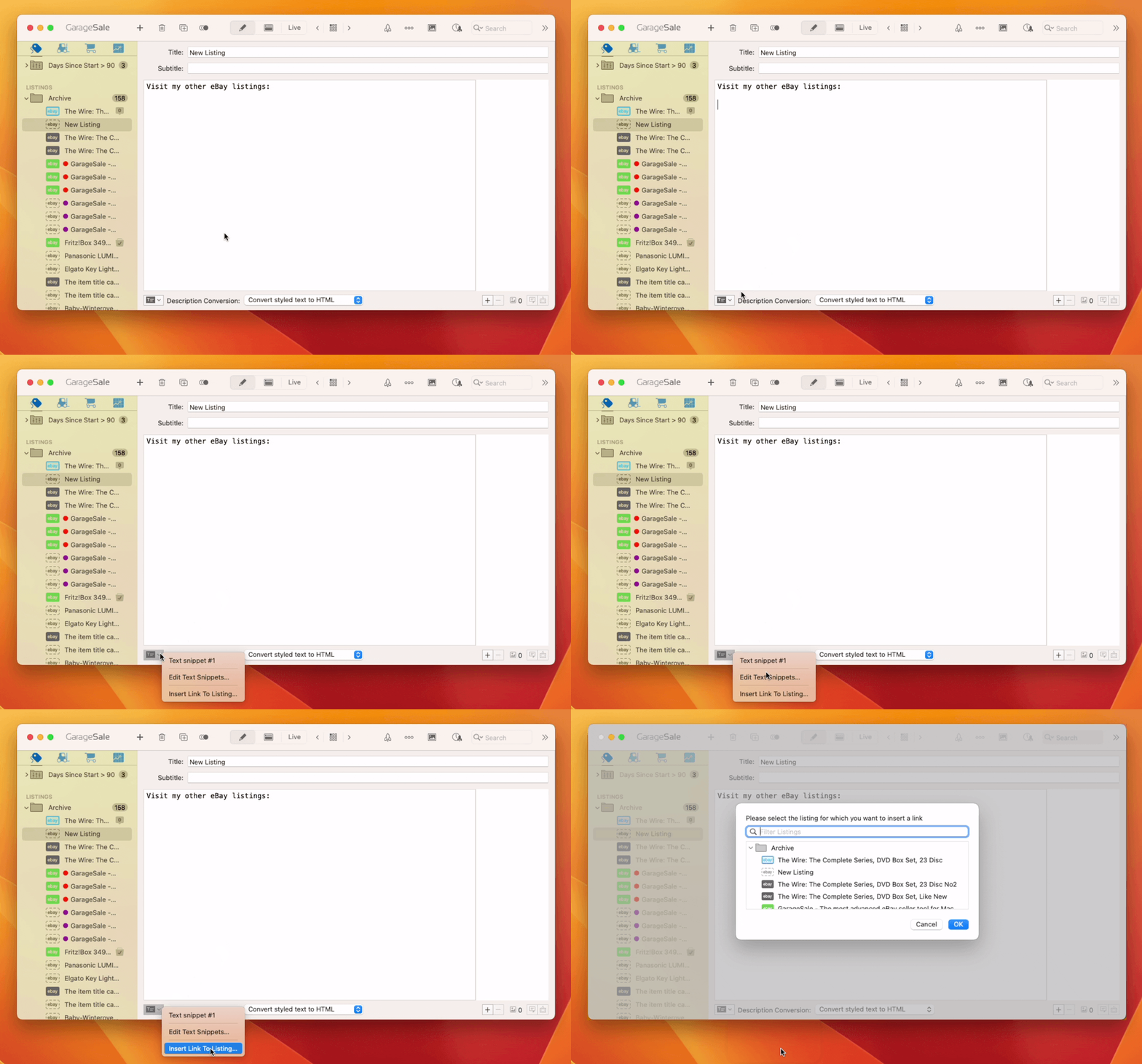
You can now add a “cross-promote” link to your item description that links to one of your other running GarageSale listings.
Just use the new “Insert Link to Listing” command from the action button at the bottom of Editor Mode. This opens a little panel that helps you selecting another listing and putting the link in your item description.
Smarter Smart Groups
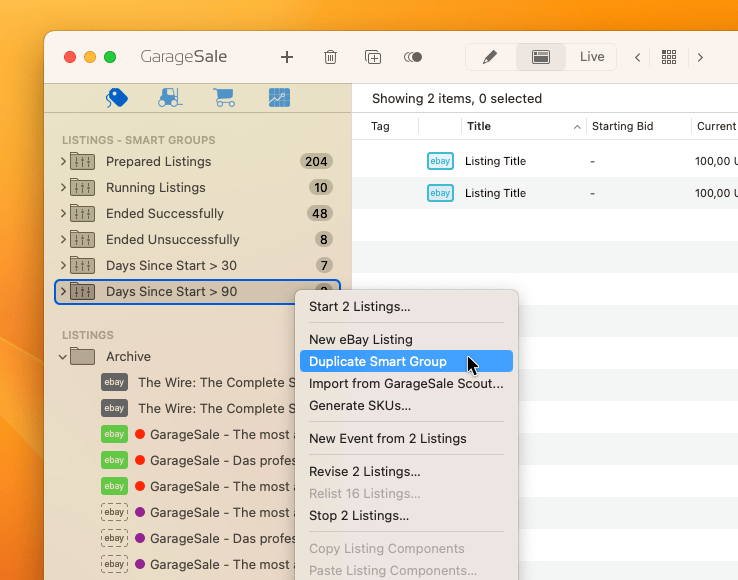
Smart Groups can now be duplicated! This is helpful if, for example, you have created complex smart groups with many filter rules and want to create another smart group based on these rules. You find the “Duplicate Smart Group” command in the context menu when right-clicking on it.
Also, we have added a new “Days Since Start” smart group rule for listings, a “Days Since Order Received” rule for orders and “Start Time”/”Order Date” as a sorting option for listing/order smart groups.
eBay Avatar Profile Images
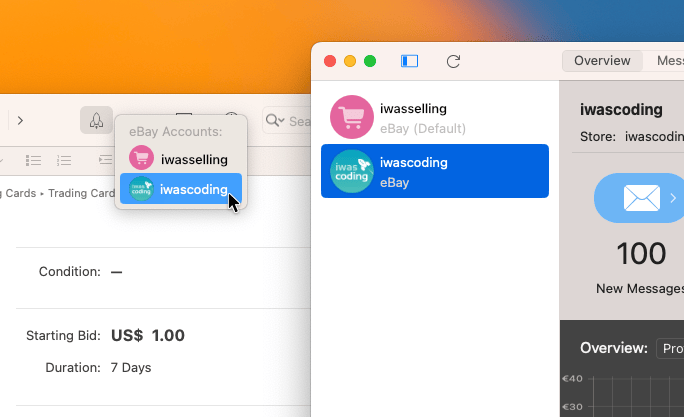
Instead of showing a generic profile image next to your eBay account, GarageSale can now show your eBay avatar image if you have already added one on the eBay profile page.
(Click on “Update Account Details” in the GarageSale preferences > Accounts after you have edited your profile image on the eBay website.)
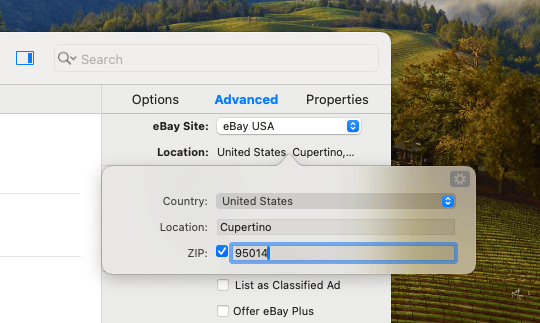
Changed ZIP code field for calculated shipping
Starting in February 2024, eBay will use the ZIP code in the listing location field instead of the “Originating ZIP Code” in the package details settings in GaragSale’s shipping section for calculating shipping rates when using calculated shipping. Please make sure your location details contain the correct ZIP code.
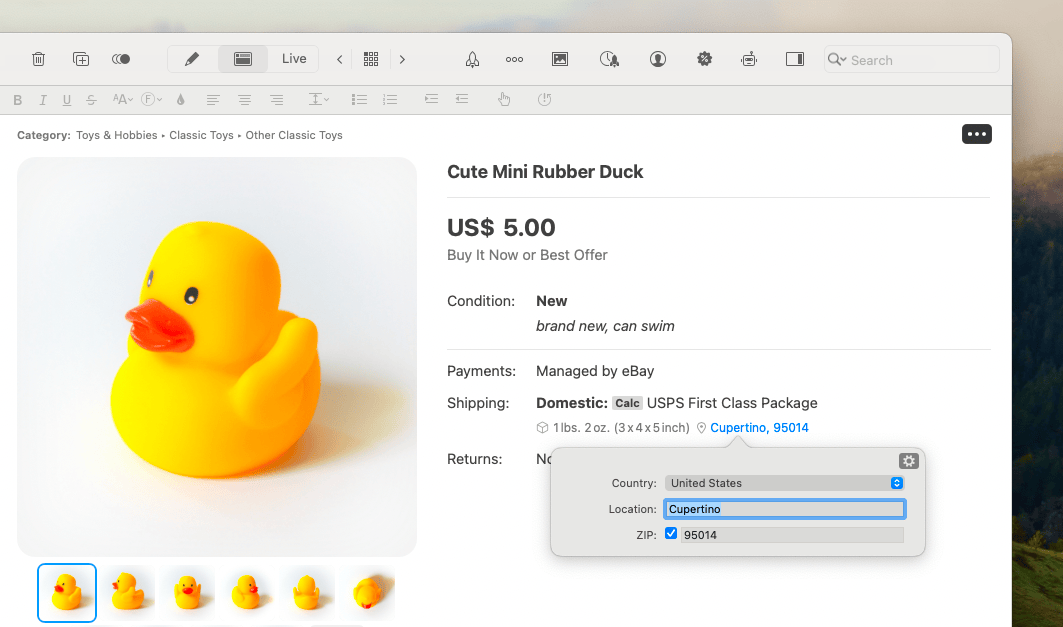
Updated Preview better matches the look of eBay’s latest changes
- Package details and item location can be opened from within Preview
- If a video has been added to a listing a “Video” icon is shown under the listing title
- If variation feature is used max/min price is shown
- Bigger images, thumbnails, and text
|
|
More Improvements
- Added keyboard shortcuts for image rotation commands in Editor mode
- The “Apply current Changes from eBay” command can import missing images from eBay
- Listing overview mode shows “eBay gallery image” instead of listing’s first image
- Fixed some UI Dark Mode issues
|
For a complete list of changes and the download link, please check this page.
If you have questions about GarageSale, don’t hesitate to get in touch with us, either through the GarageSale forum or by contacting us directly.
Posted in GarageSale | Comments Off on GarageSale 9.6 improves listing cross-promotions and make smart groups even smarter
November 15th, 2023:
We just released GarageSale 9.5, which adds improvements in two critical areas: Trading cards and catalog integration.
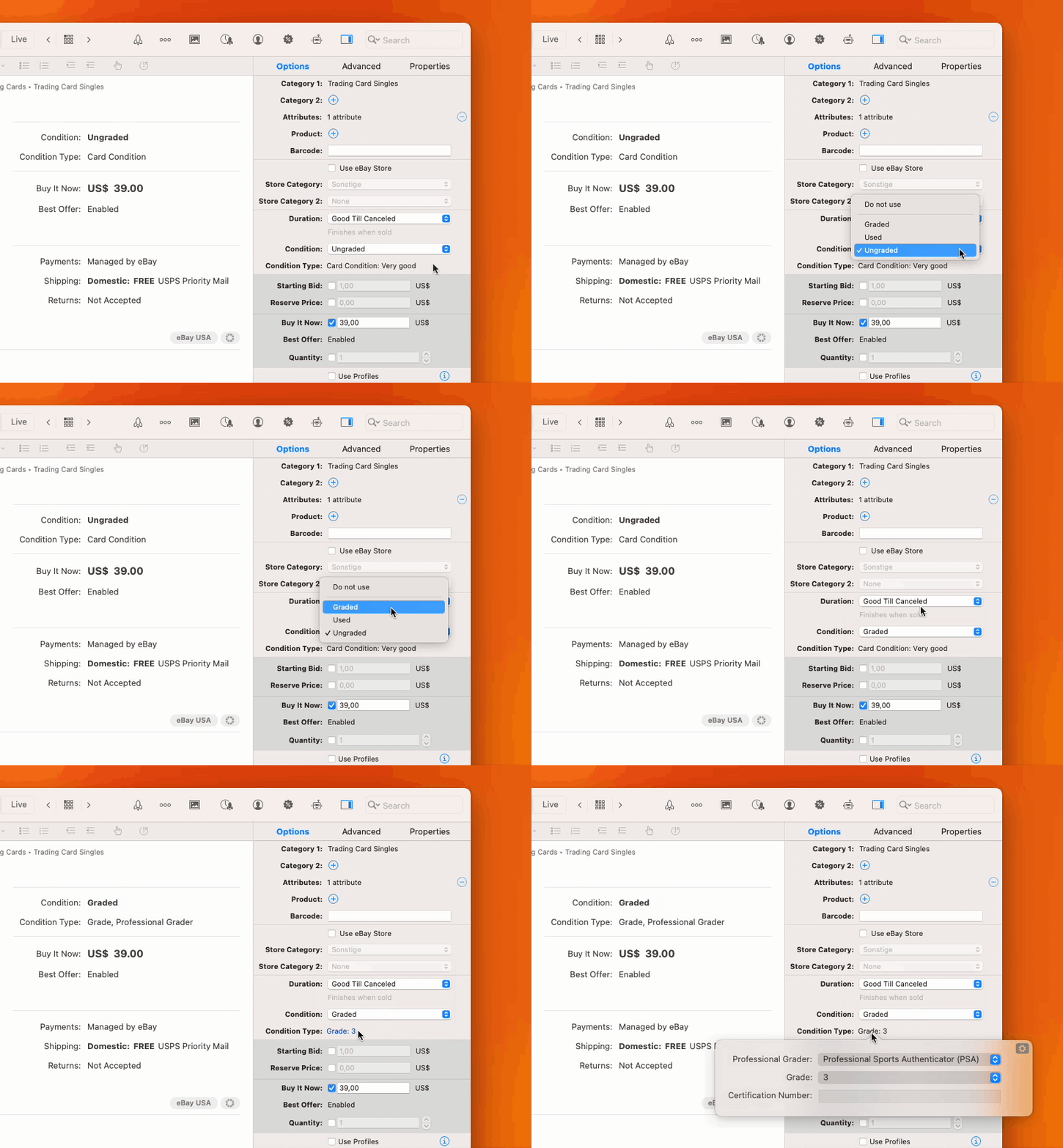
eBay has introduced a new system for specifying the condition of trading cards. This new system requires sellers to specify the grade of a trading card, and optionally a grading institution and a certificate. GarageSale now lets you specify these value in its listings inspector.
Also, the listing process in categories that make heavy use of eBay’s product catalog, e.g. book categories, has been improved. In particular, GarageSale no longer asks you to enter “required” attributes, when these attributes are already part of the selected product and therefore would be displayed on the eBay page automatically.
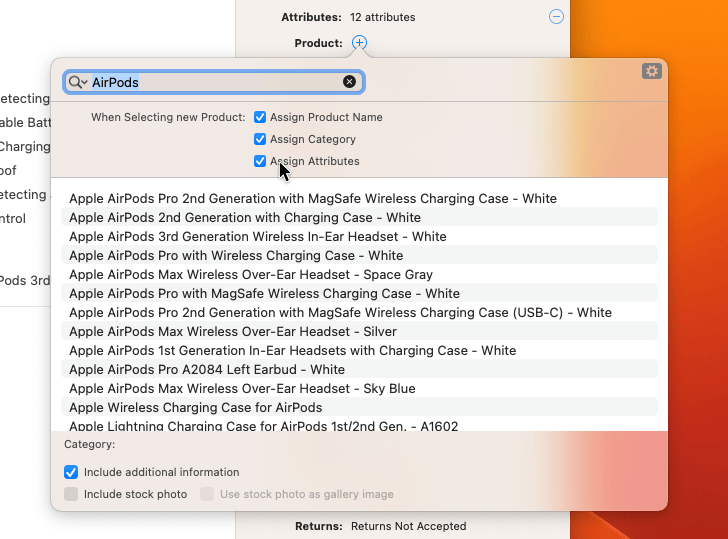
In addition, an “Assign Attributes” checkbox has been added to the Products panel, which adds pre-defined attributes (if available) from eBay’s product catalog into your listing automatically.
For a complete list of changes and the download link, please check this page.
If you have questions about GarageSale, don’t hesitate to get in touch with us, either through the GarageSale forum or by contacting us directly.
Posted in GarageSale | Comments Off on GarageSale 9.5 adds support for trading card conditions and improves integration with eBay’s catalog
August 1st, 2023:
We just released GarageSale 9.4, an update to our eBay selling software for macOS.
Among many other things, GarageSale 9.4 lets you edit a listing’s attributes within its integrated preview and uses the much faster image picker provided by macOS 13 and up.
You can find a detailed list of all the changes in GarageSale 9.4 in this post on our user forum.
Posted in GarageSale | Comments Off on GarageSale 9.4 Released
March 9th, 2023:
We just released GarageSale 9.3, an update to our eBay selling software for macOS.
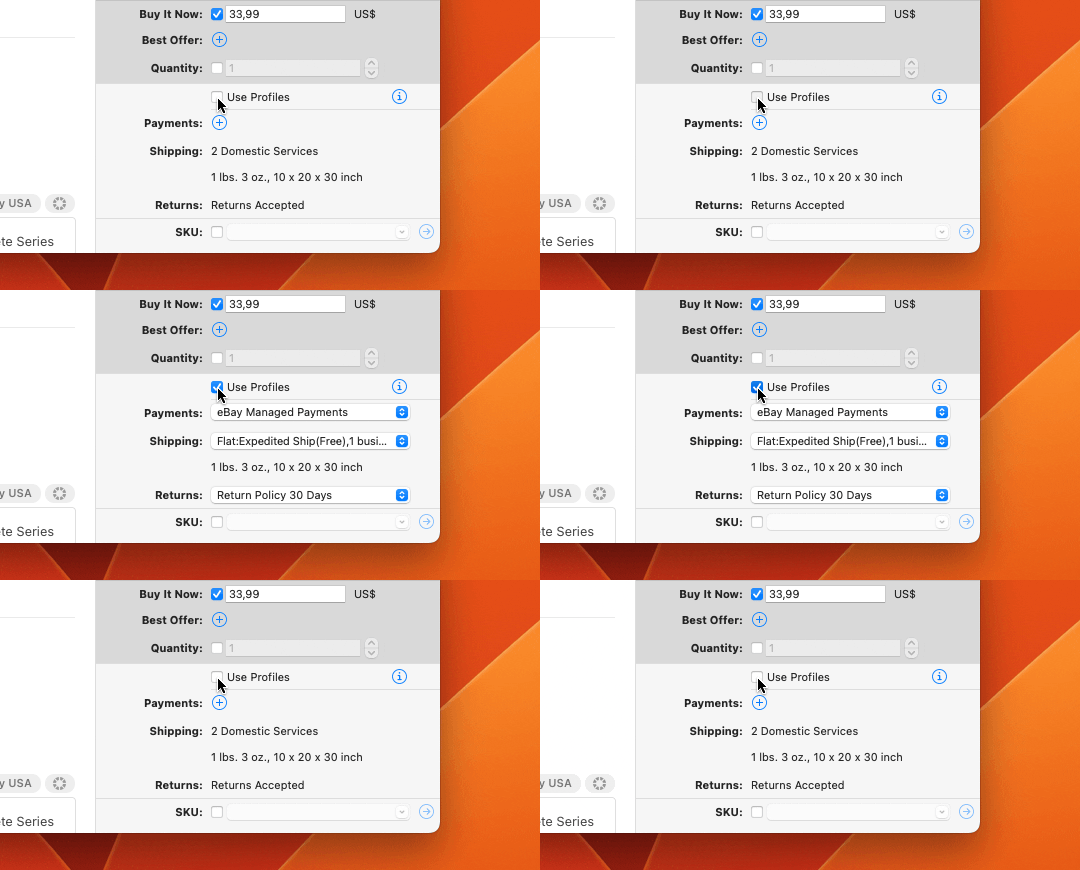
Version 9.3 makes it a lot easier to enable and switch between different profiles for shipping, payment, and returns. Also, we polished GarageSale’s built-in listing preview and fixed a couple of annoying bugs.
You can find a detailed list of all the changes in GarageSale 9.3 in this post on our user forum.
Posted in GarageSale | Comments Off on GarageSale 9.3 Released